

Overview
There are two types of validation in FormBuilder:- Field validation - this type of validator will validate only one form field, obviously.
- Form validation - this type of validator validates the whole form.
Field validation
Field validators come in different types:- Built-in FormBuilder. There are a number of predefined validators for different data types (string, number, etc.).
- Defined by code inside the FormBuilder.
- Passed externally to the FormBuilder/FormViewer component via the validators parameter.
true or false or an error text. Field validators are grouped by the type of
value being validated (string, number, etc.), i.e. a validator for the string type will not be available in the designer interface for a
numeric value, etc.
Built-in validators
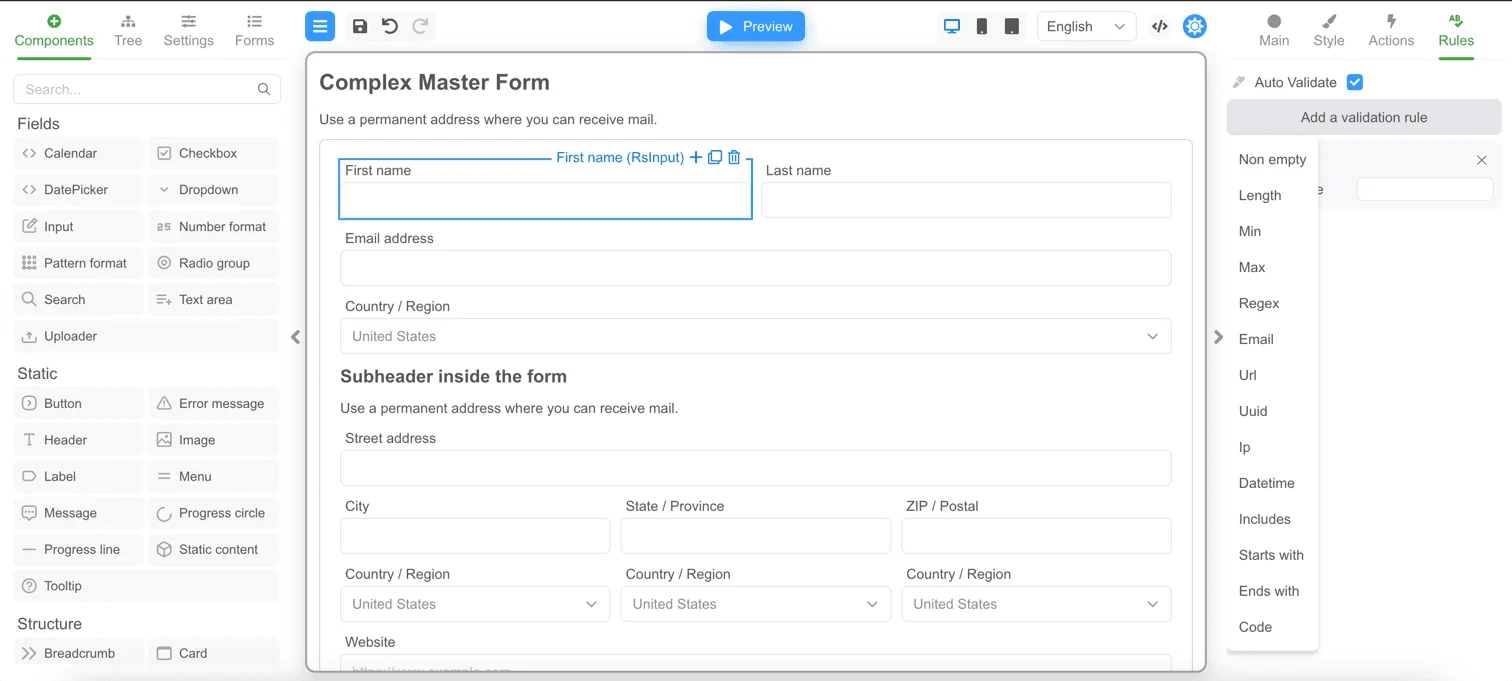
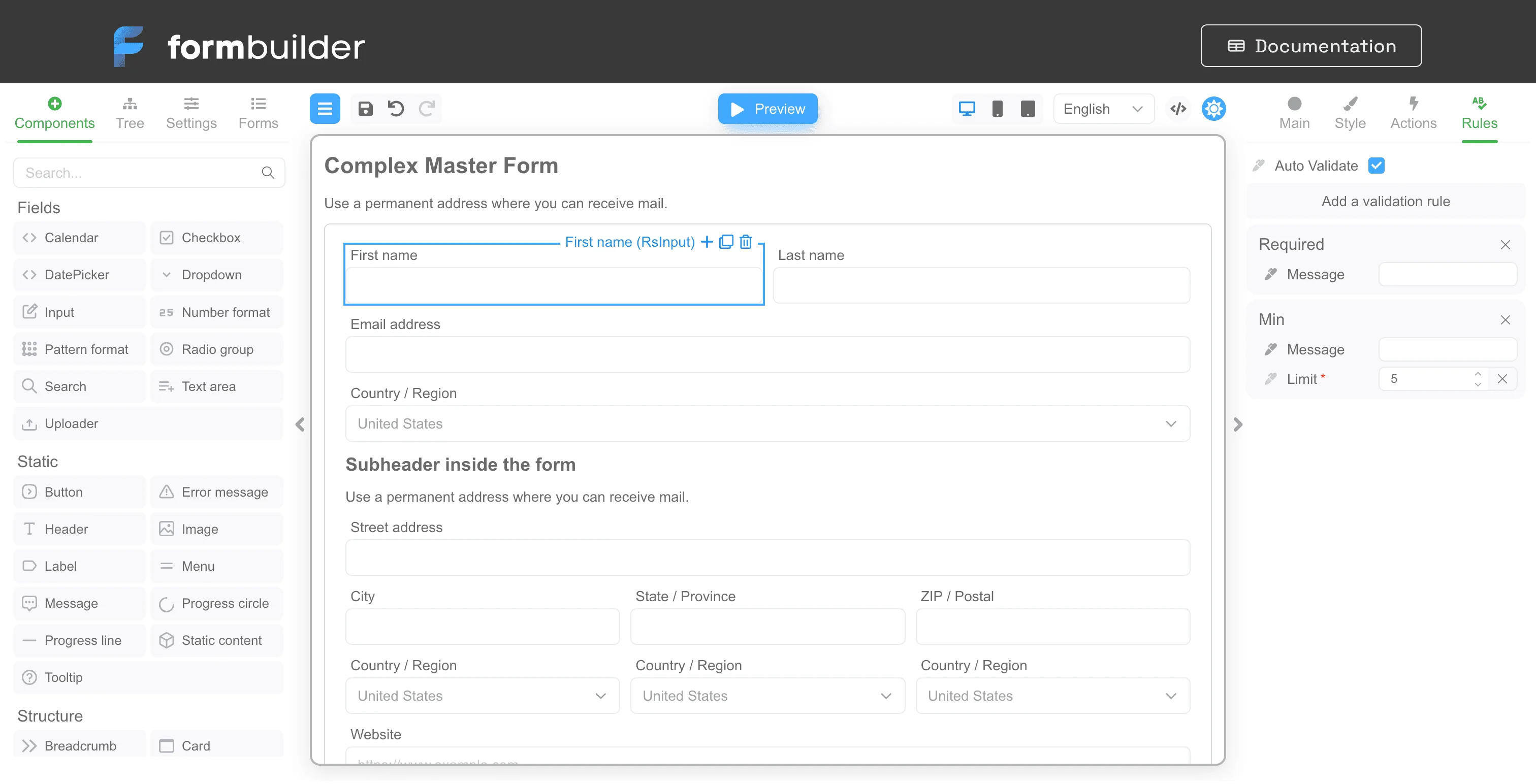
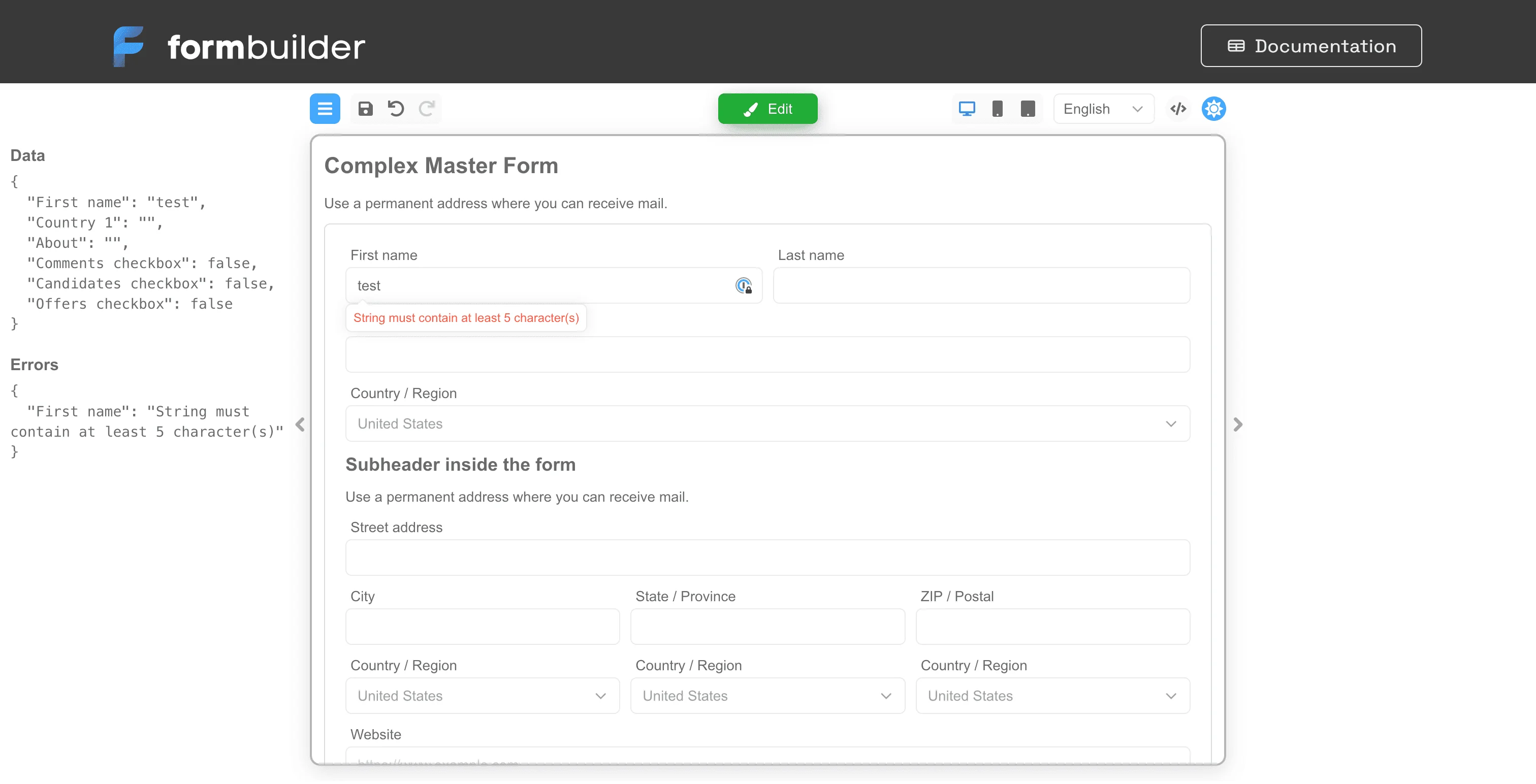
To add a validator to a component - select the component in the designer and go to the “Rules” tab as in the screenshot below: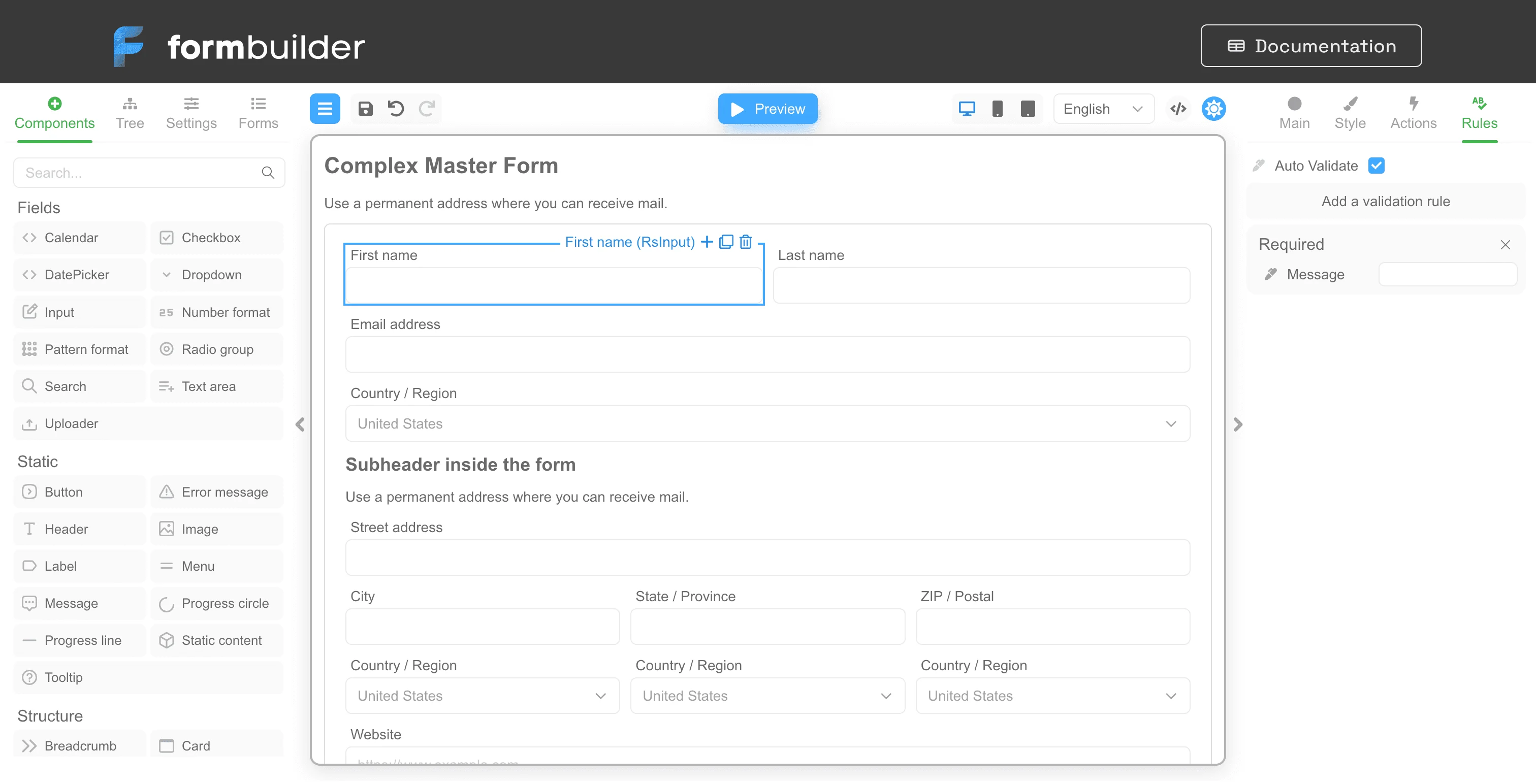
Conditional validation
If you want the built-in or custom validation to be executed only when certain conditions are met, then you can use the Validate when property.Automatic validation is triggered only when the value of its field is changed. For example, if the form data has been changed, but the field
with conditional validation has not changed, then automatic conditional validation for the field will not be triggered.
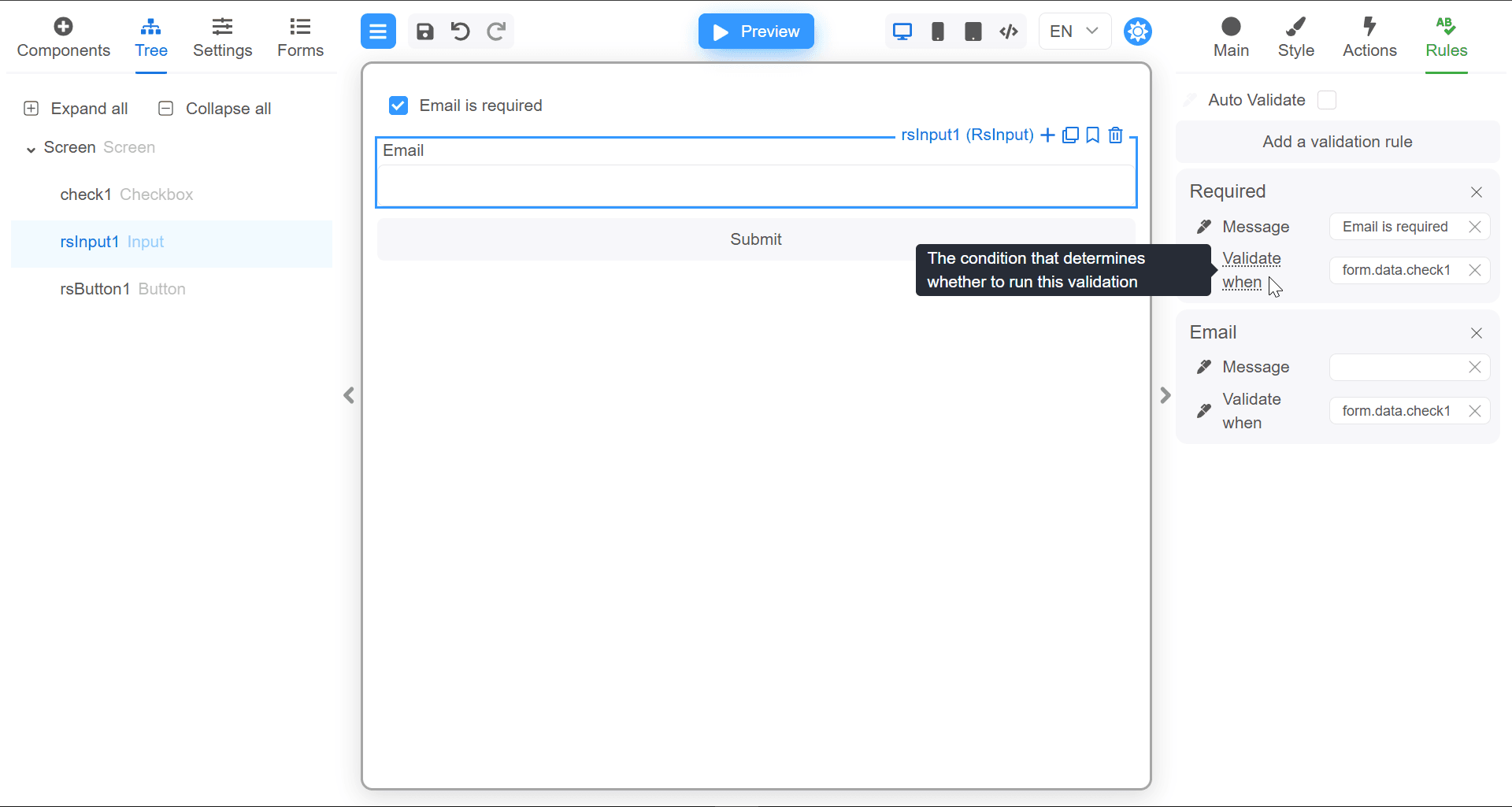
- Simplified, through the input field, where you can specify a one-line expression, for example
form.data.check1 === true. - Through the code editor, which can be opened by clicking on the pen icon to the left of the Validate when label.
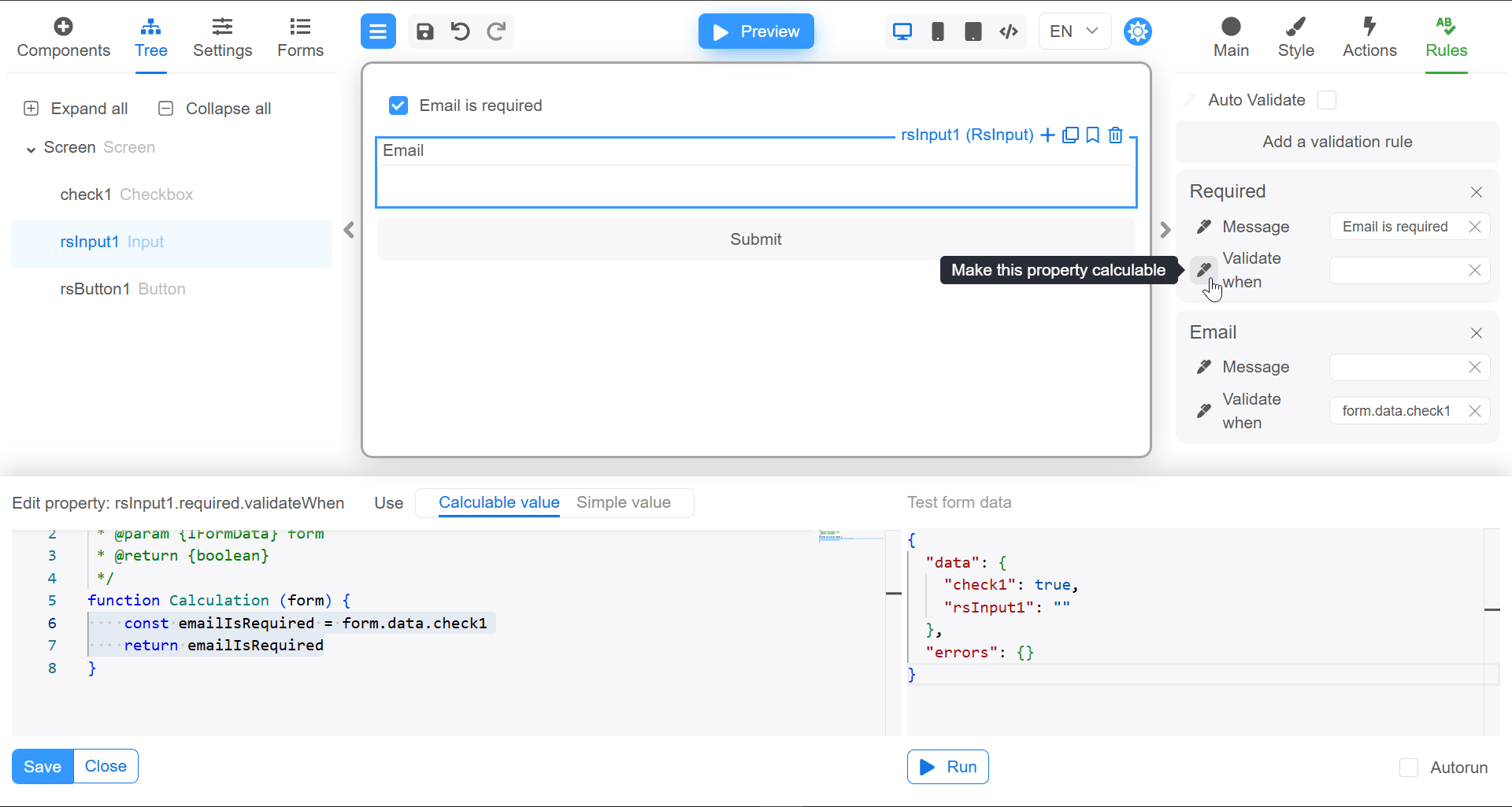
Example
-
Create a simple form with three controls:
Checkbox,InputandButton. -
Set the
check1key to the checkbox.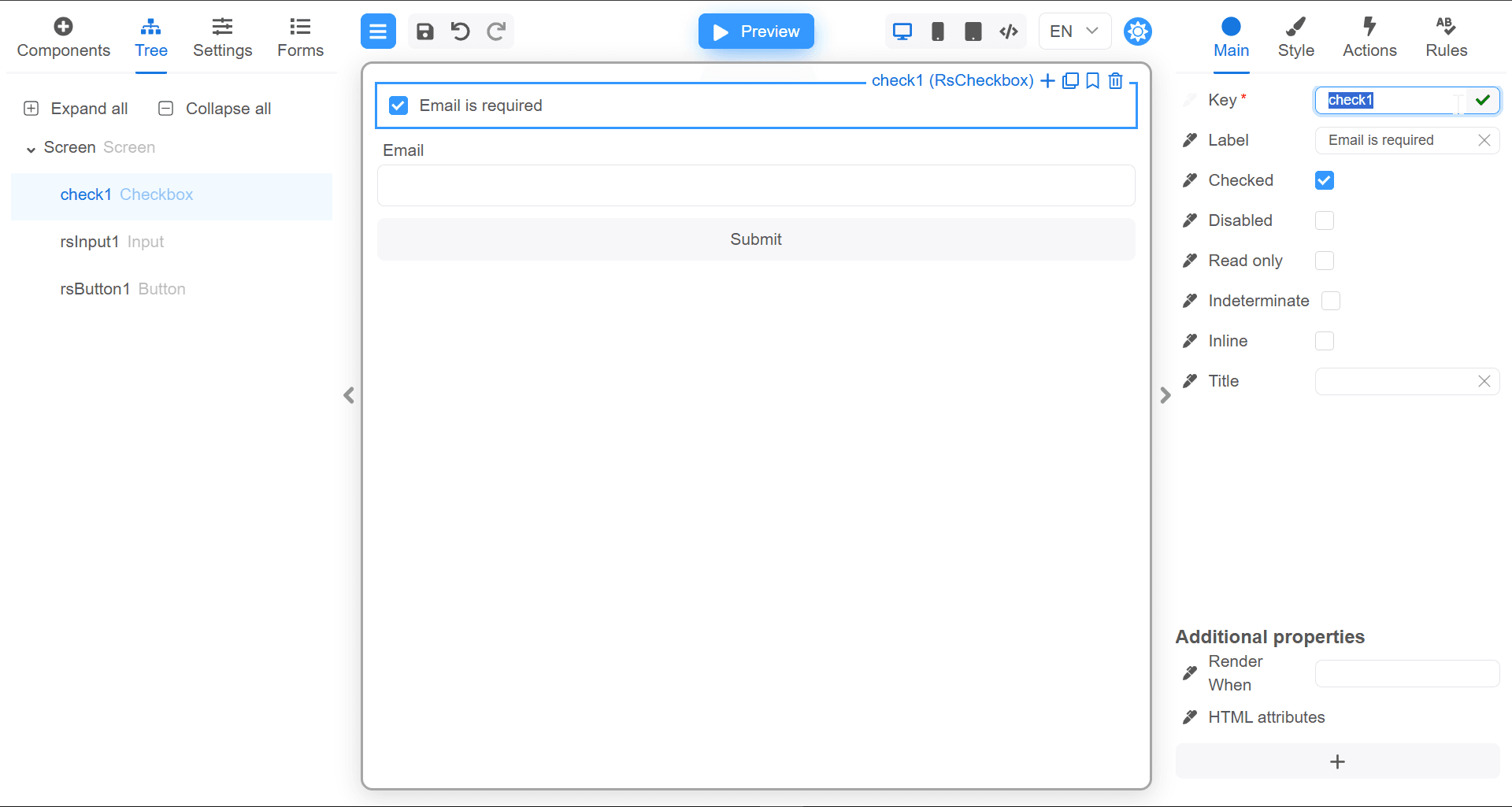
-
For the button, add the action
validate.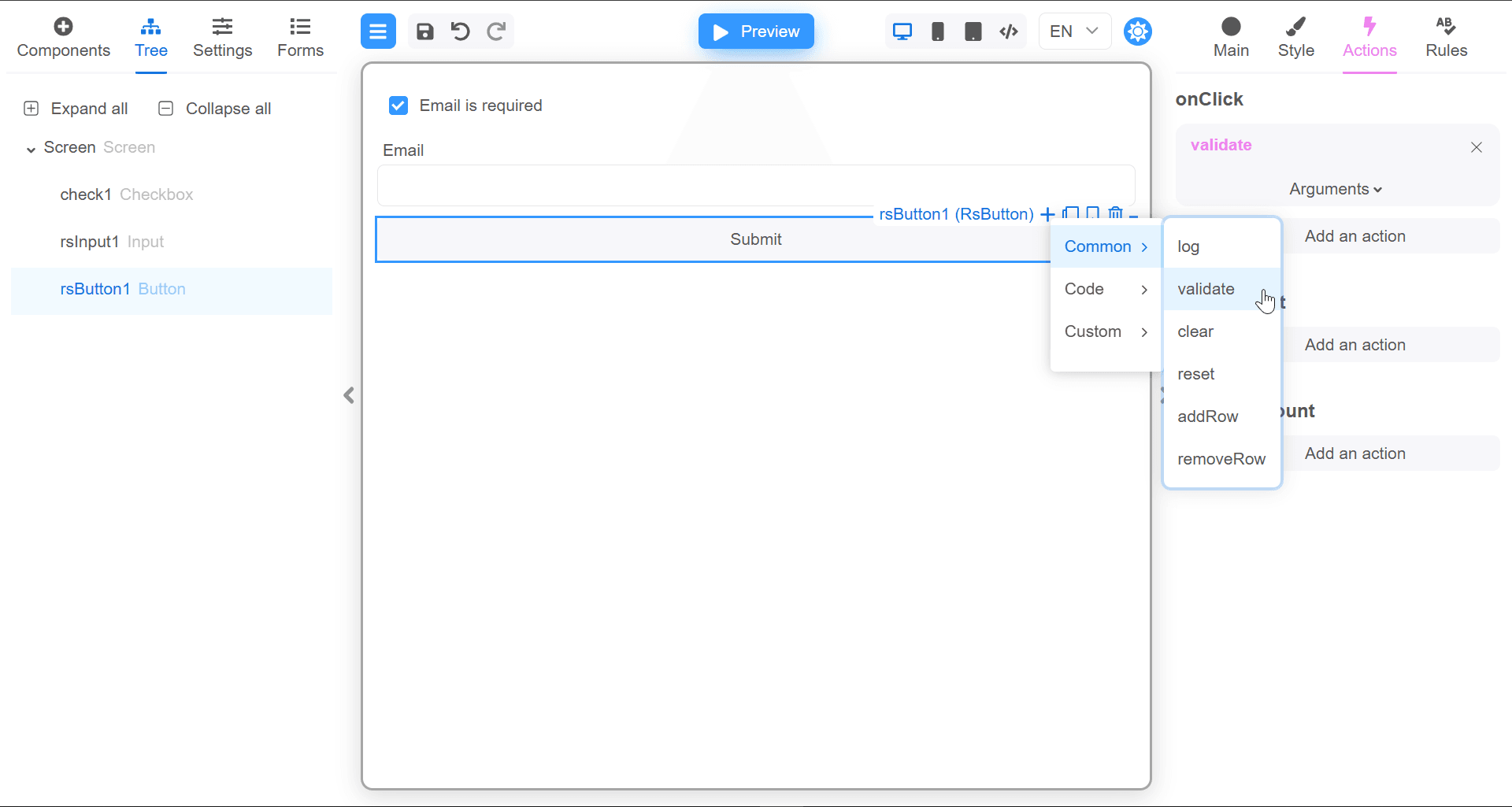
-
For the input field, add the validation
Required.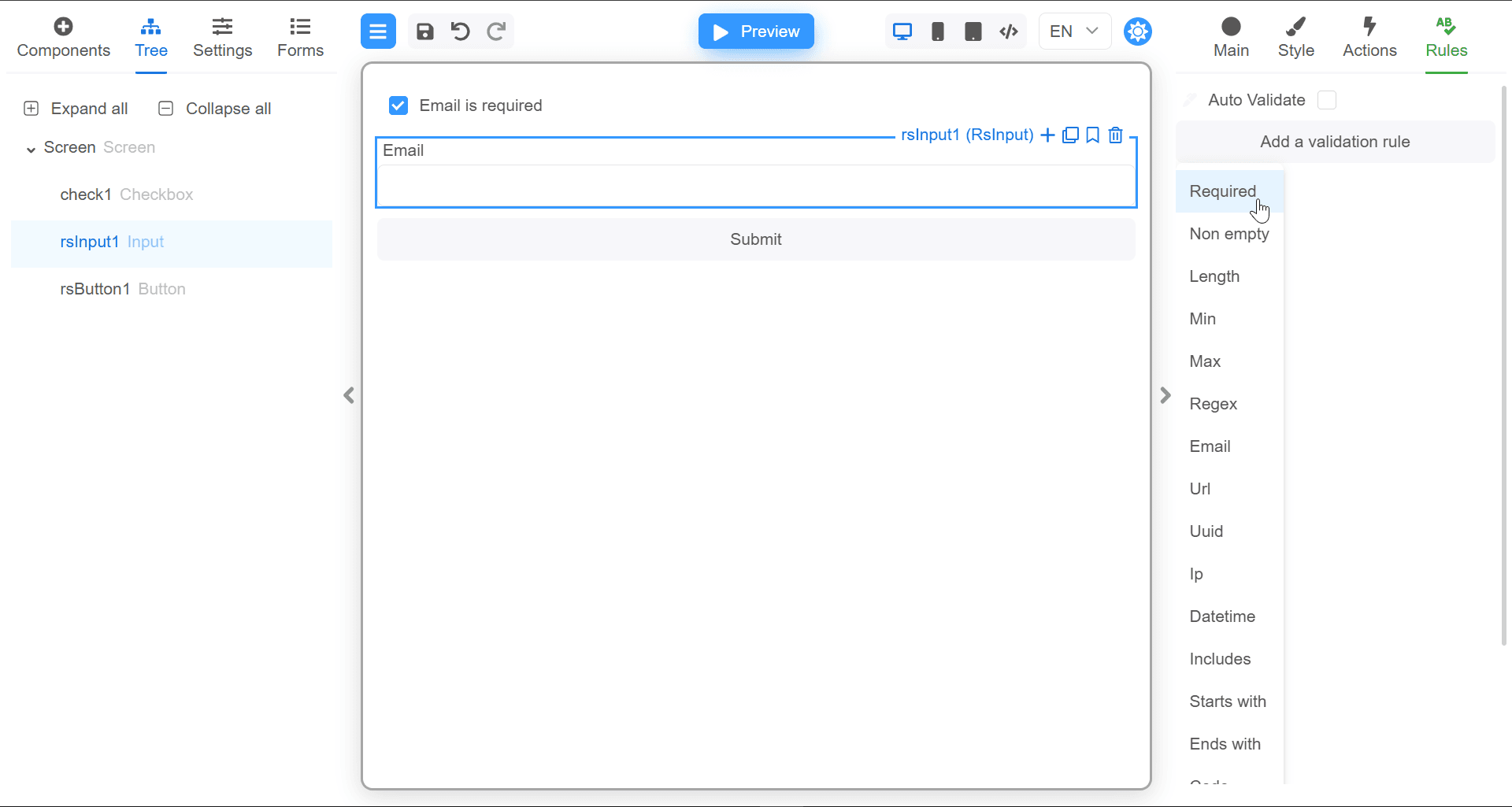
-
Set the Validate when property for the
Requiredvalidator toform.data.check1.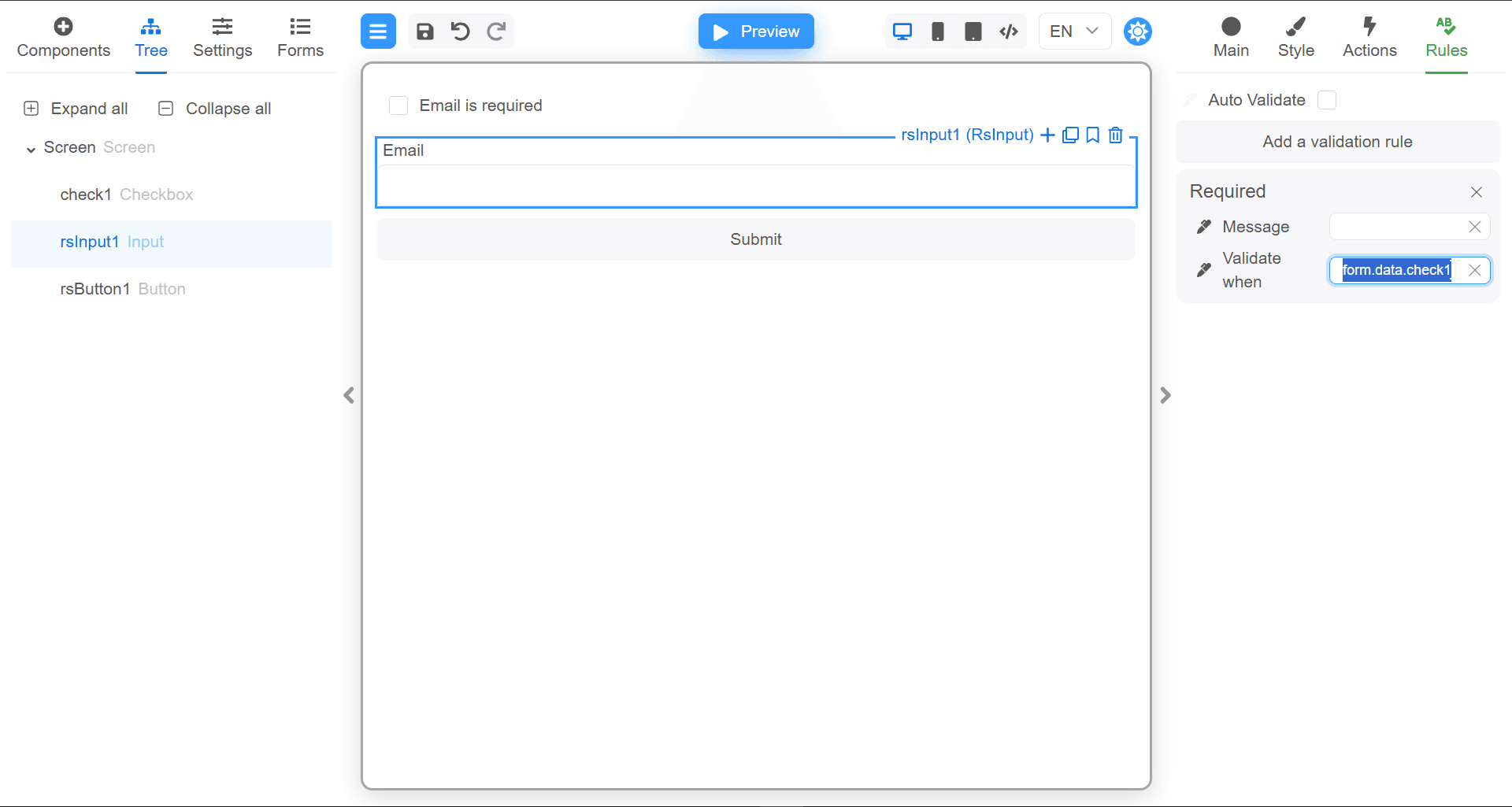
-
Now, go to the
Previewmode and press the checkbox to the off position. -
Click the validation button. You’ll notice that no validation is triggered, despite the email field being empty.
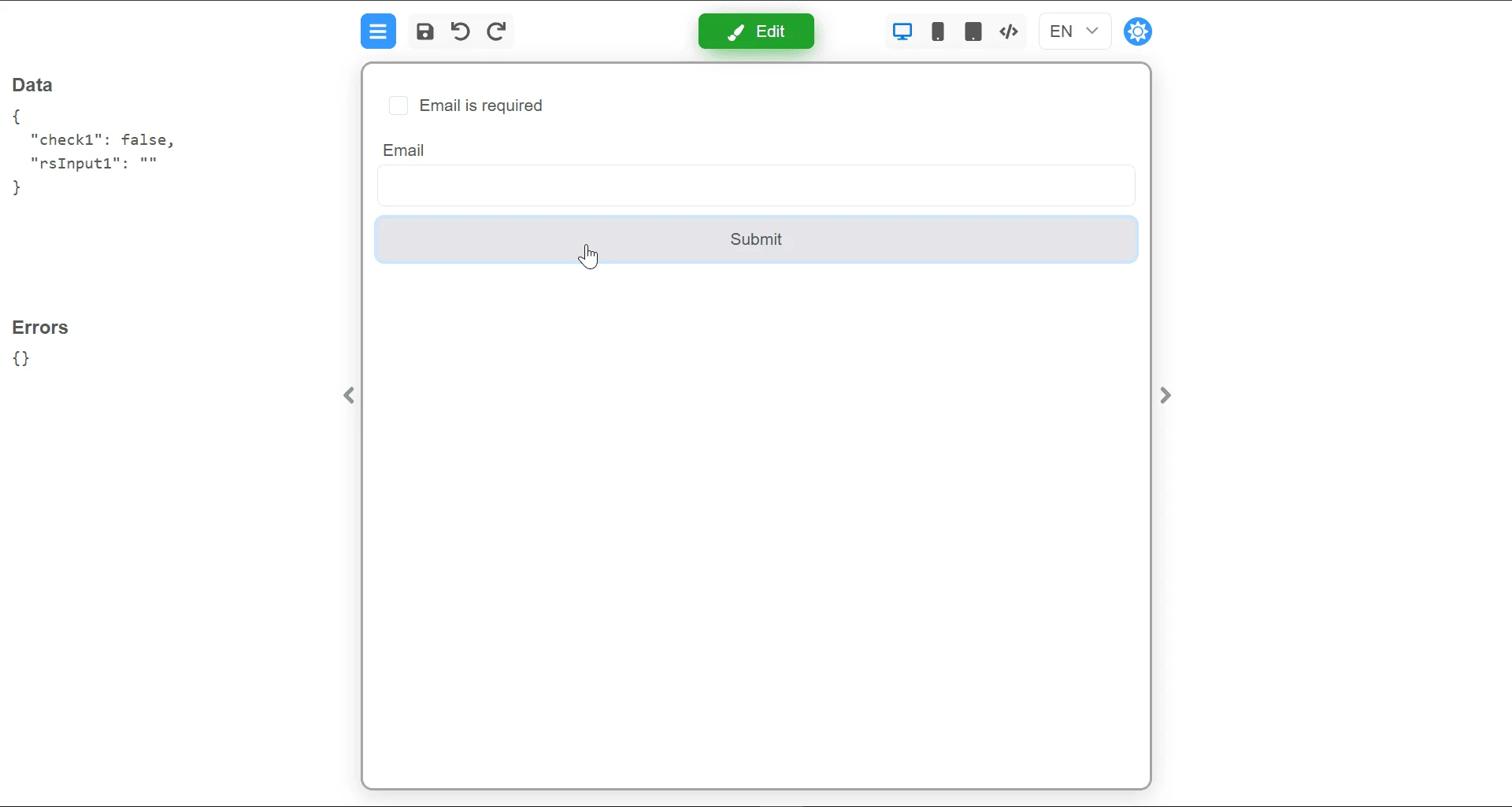
-
If you check the checkbox and then click on the validation button, validation will be triggered.
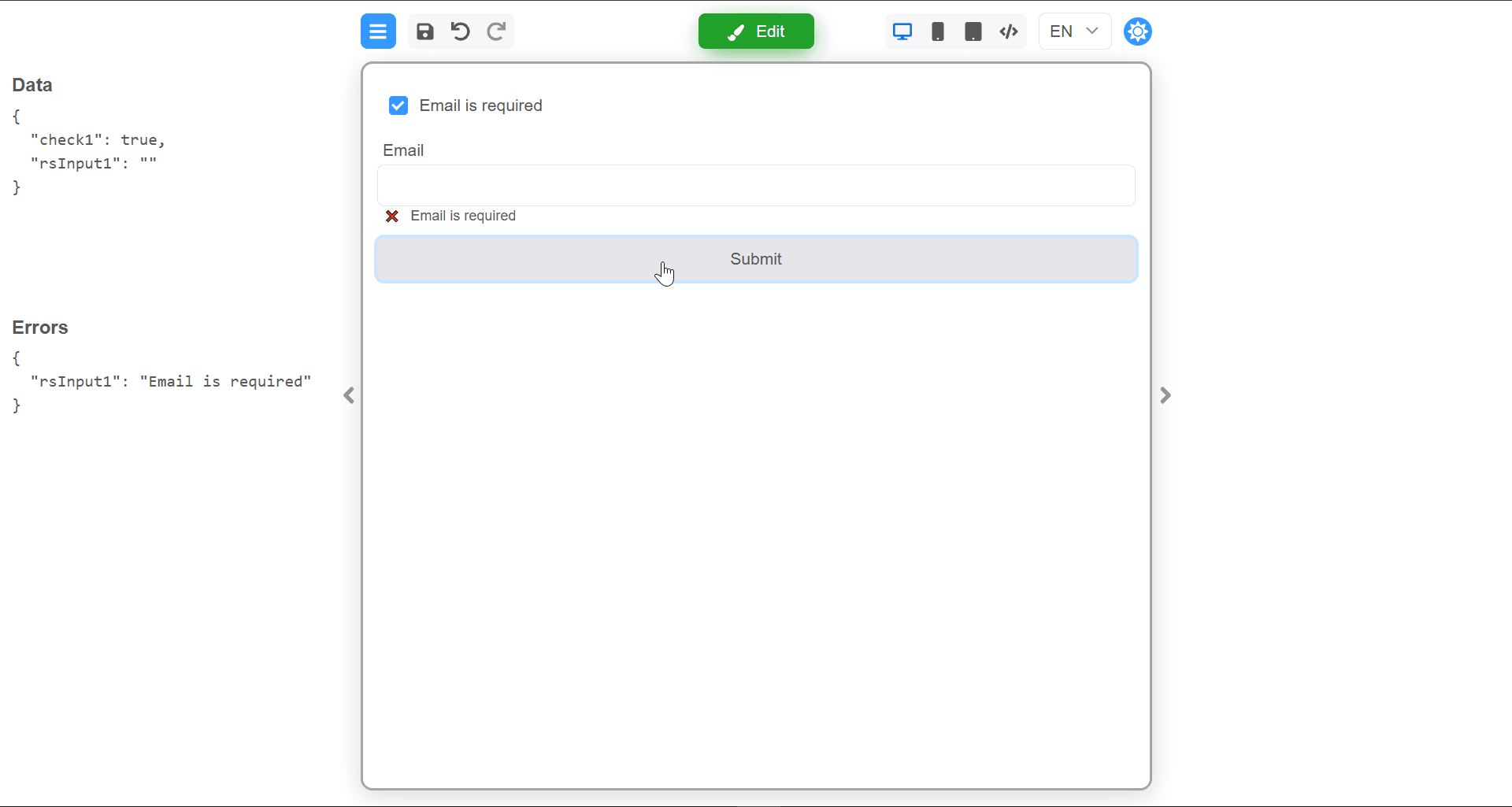
Code validator
This type of validation is defined for data of type string. To use this validator - select “Code” from the drop-down menu.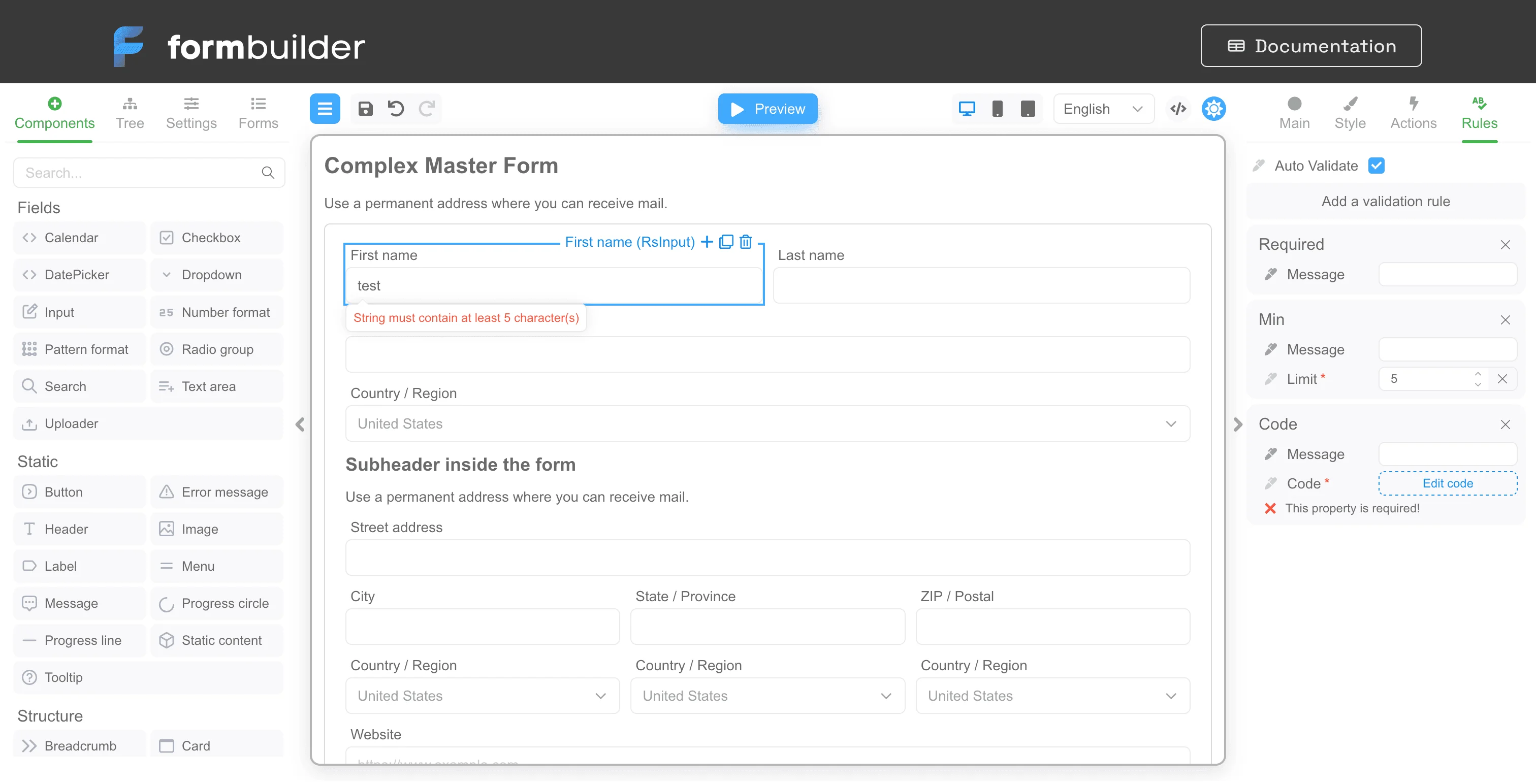
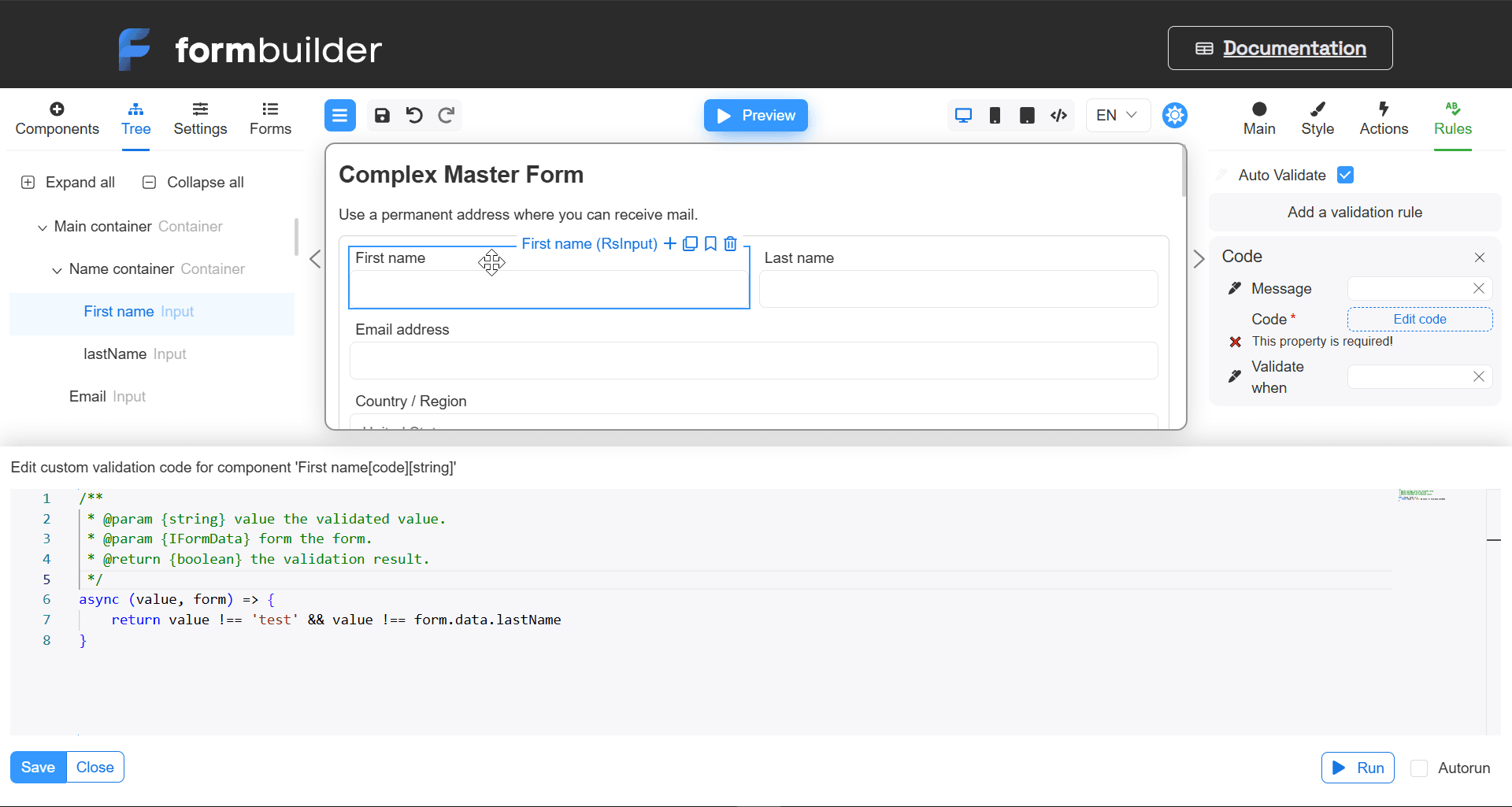
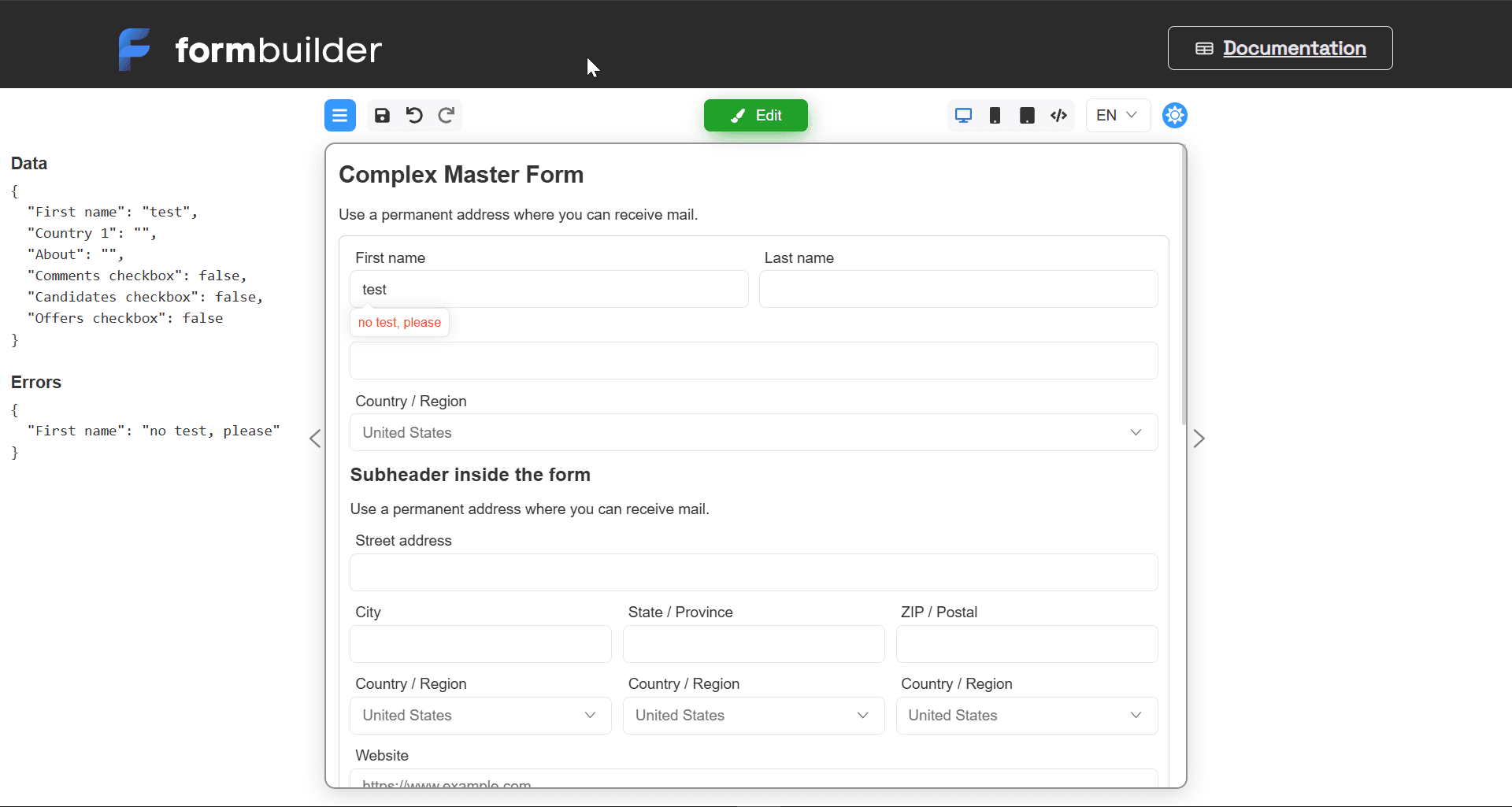
User-defined validators
This kind of validators is passed through the validators property and works the same way as the built-in validators. You can see an example in this section of the documentation. Once validators are connected via a property, they will be available for selection in the designer and can be handled in the same way as built-in validators. A simple example of validators:Form validation
Form validator editor
When editing a form in the designer, you can set a code that will validate the entire form. To do this, go to the Settings tab and click the Edit code button at the Form validator property.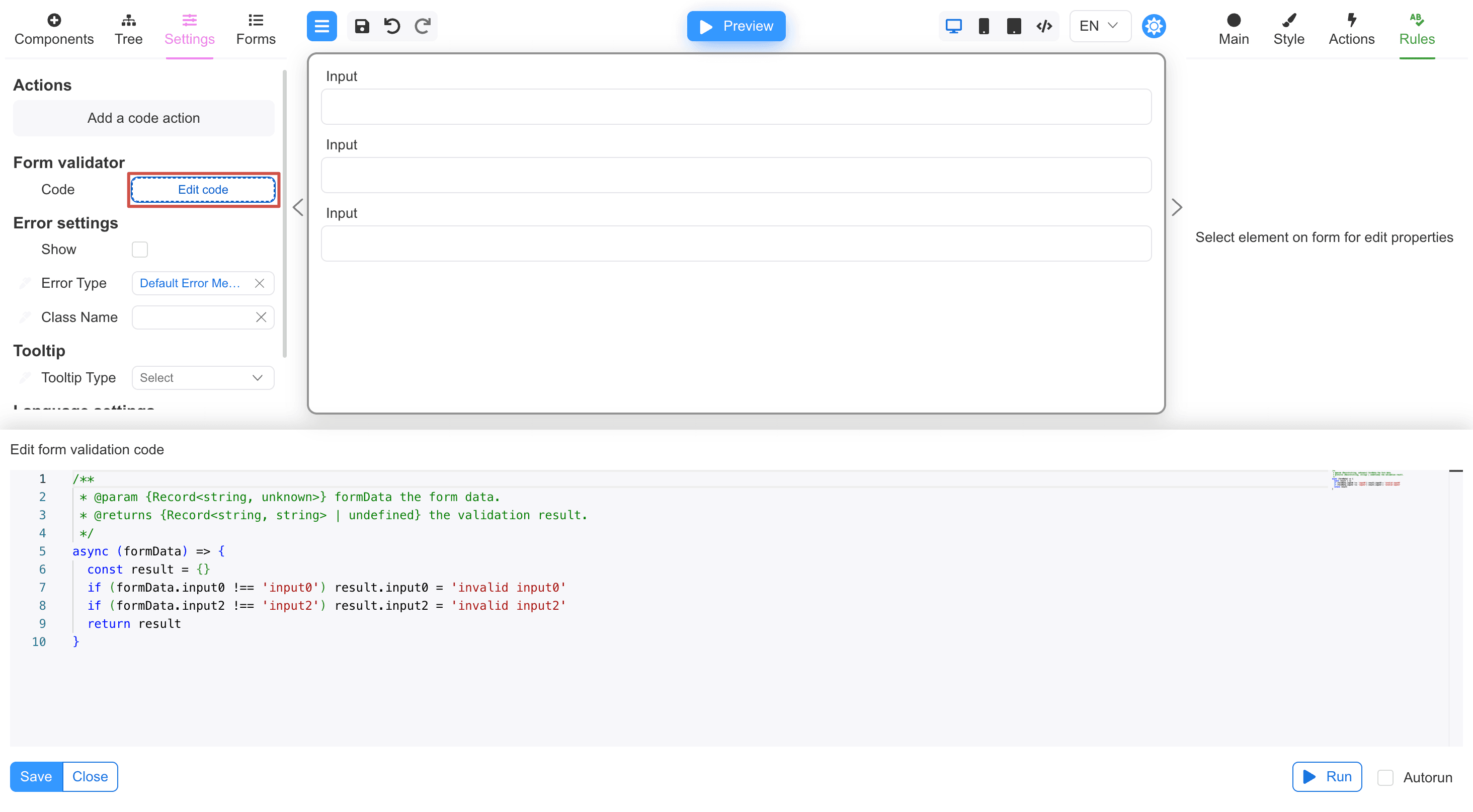
undefined if validation is successful.
Example:
External
Whole form validation can be implemented if validators have been passed to the FormBuilder/FormViewer properties in the formValidators property. FormValidators is an array of the validation function. Each form validation function is an asynchronous function that takes form data as input and returns an object with form field validation errors, or an empty object if the form validation is successful. Below is a simple example of validating a form by checking the “login” and “agreeCheckbox” fields:Next steps
- Core Validation — Implement validation in FormEngine Core runtime
- Designer Actions — Trigger actions based on validation results