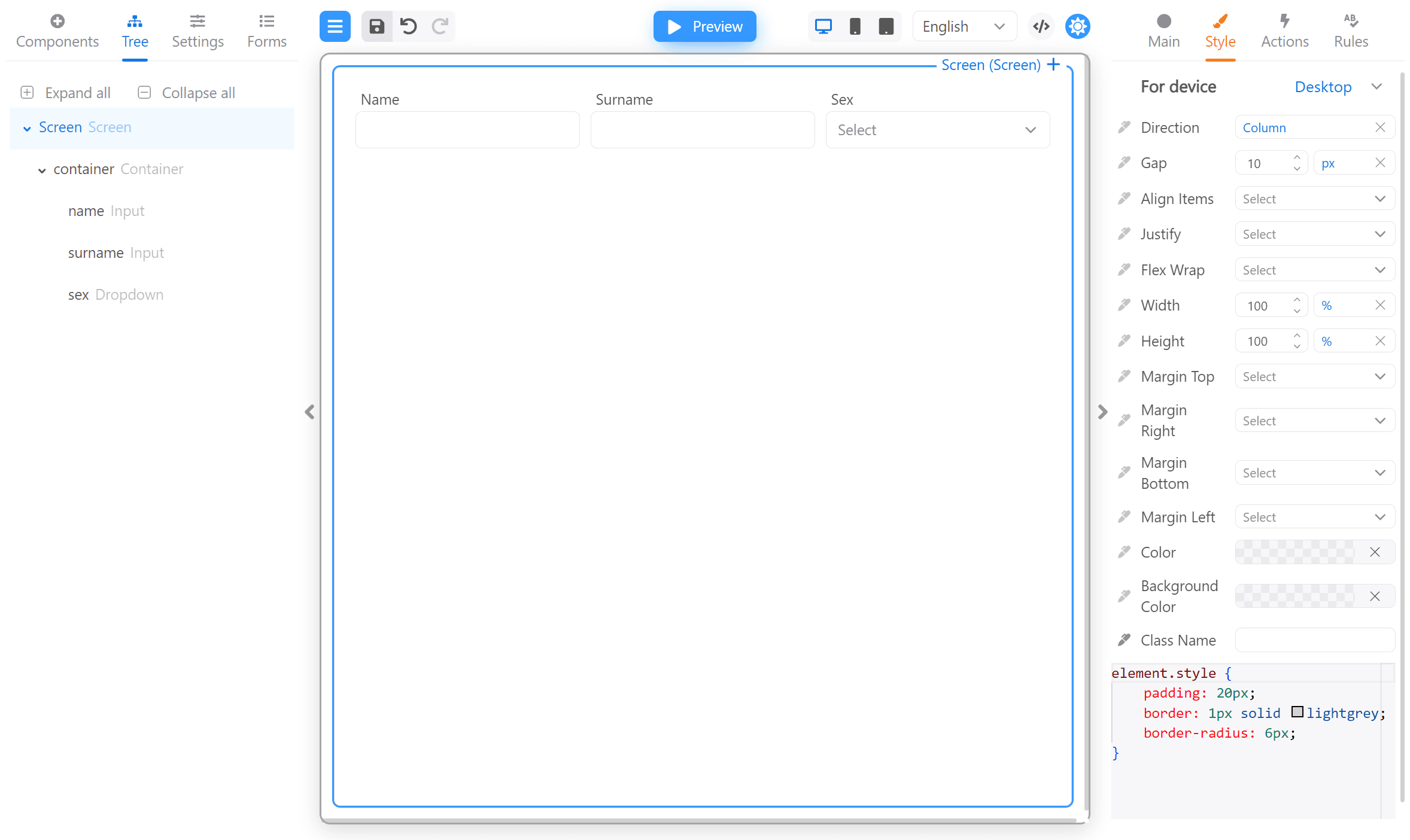
Form Builder allows you to set different styles for different layouts. In the “For device” drop-down menu on the “Style” tab, you can select the device for which the styles will be applied. The device is determined by the width of the window:
  1. Any - these styles are applied to all devices, regardless of window width.
  2. Desktop - for desktop devices with a window width greater than 900 pixels.
  3. Mobile - for mobile devices where the window width is less than or equal to 600 pixels.
  4. Tablet - for tablet devices where the window width is less than or equal to 900 pixels.
  5. Custom breakpoints - this functionality is in development. Will be added later.
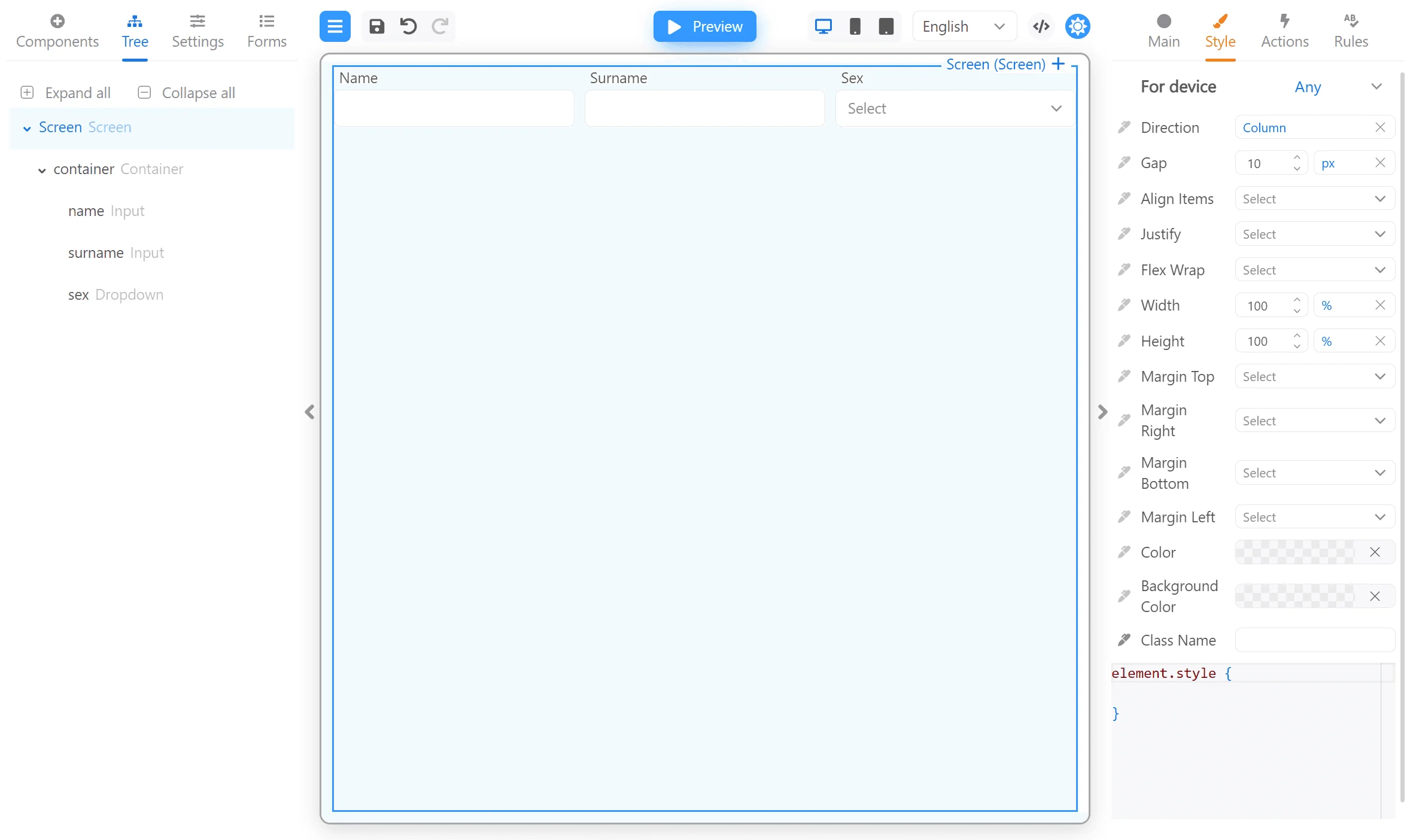
Let’s take a look at how this works. To demonstrate, let’s create a form with three fields located in one container. Adaptive layout 01 This is a ready-made JSON form with this example. You can copy it to the JSON form editor for see how it works. Click the </> button, then paste the code below and close the “Edit JSON” window. We have added the following styles for the Screen in Desktop mode:
element.style {
  padding: 20px;
  border: 1px solid lightgrey;
  border-radius: 6px;
}
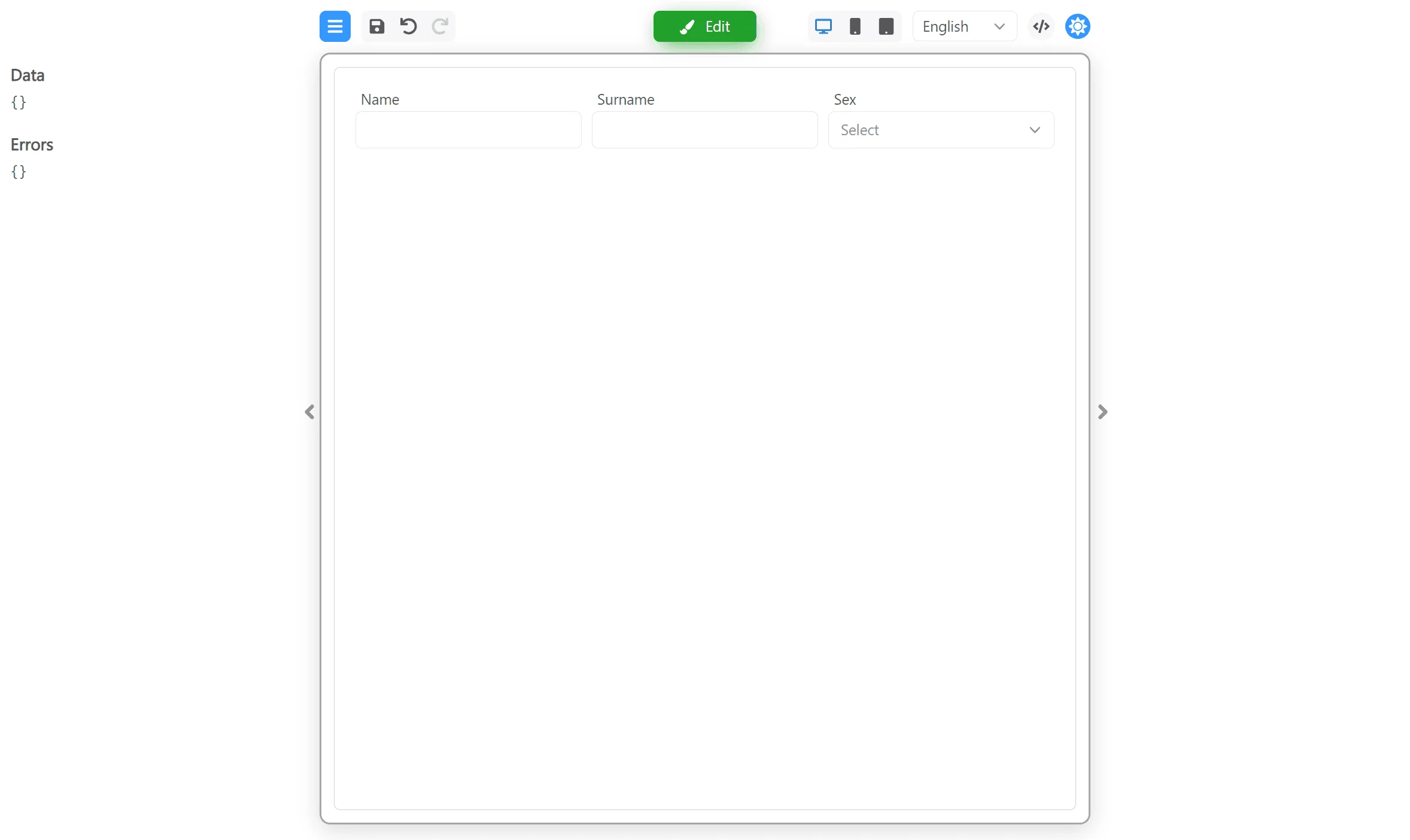
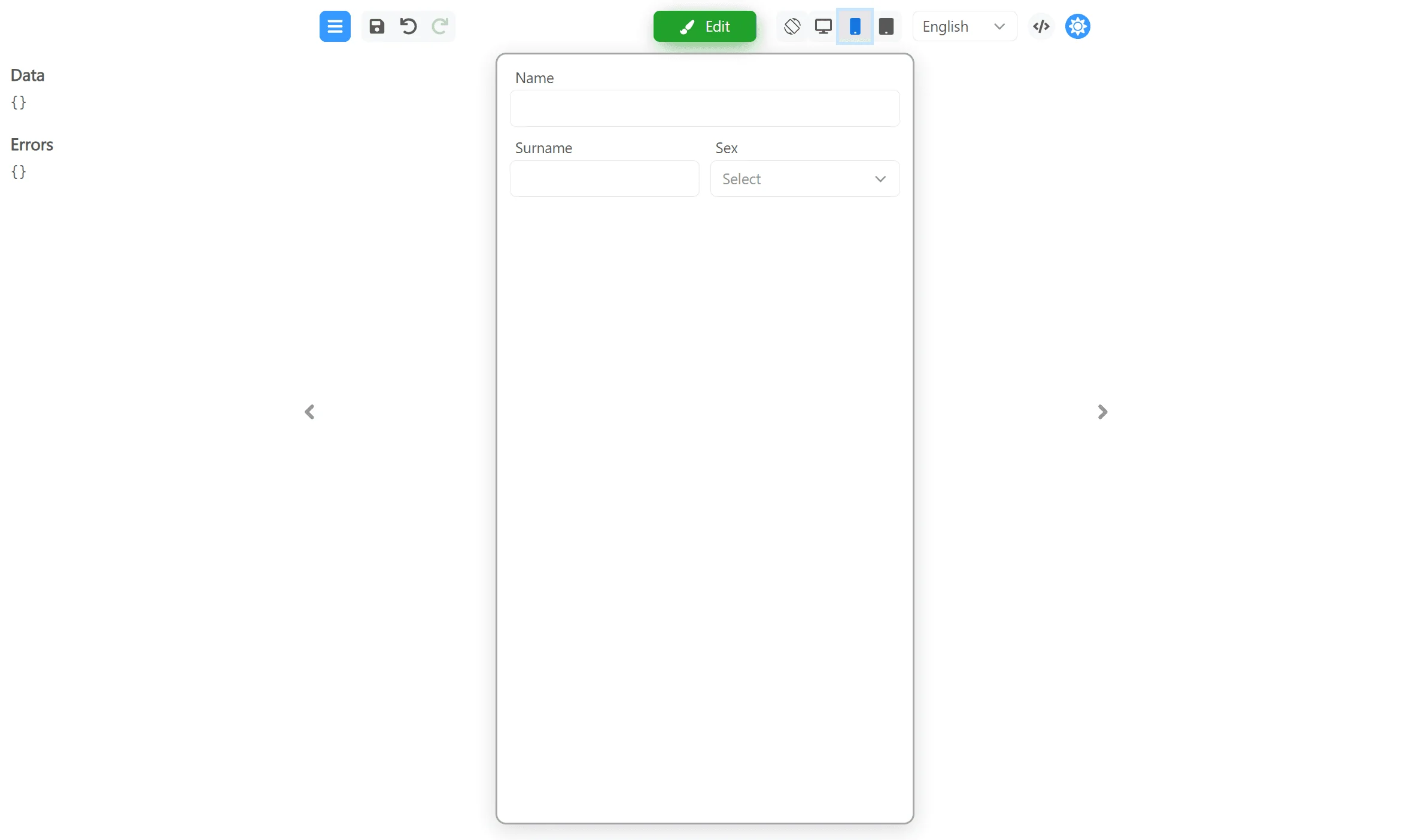
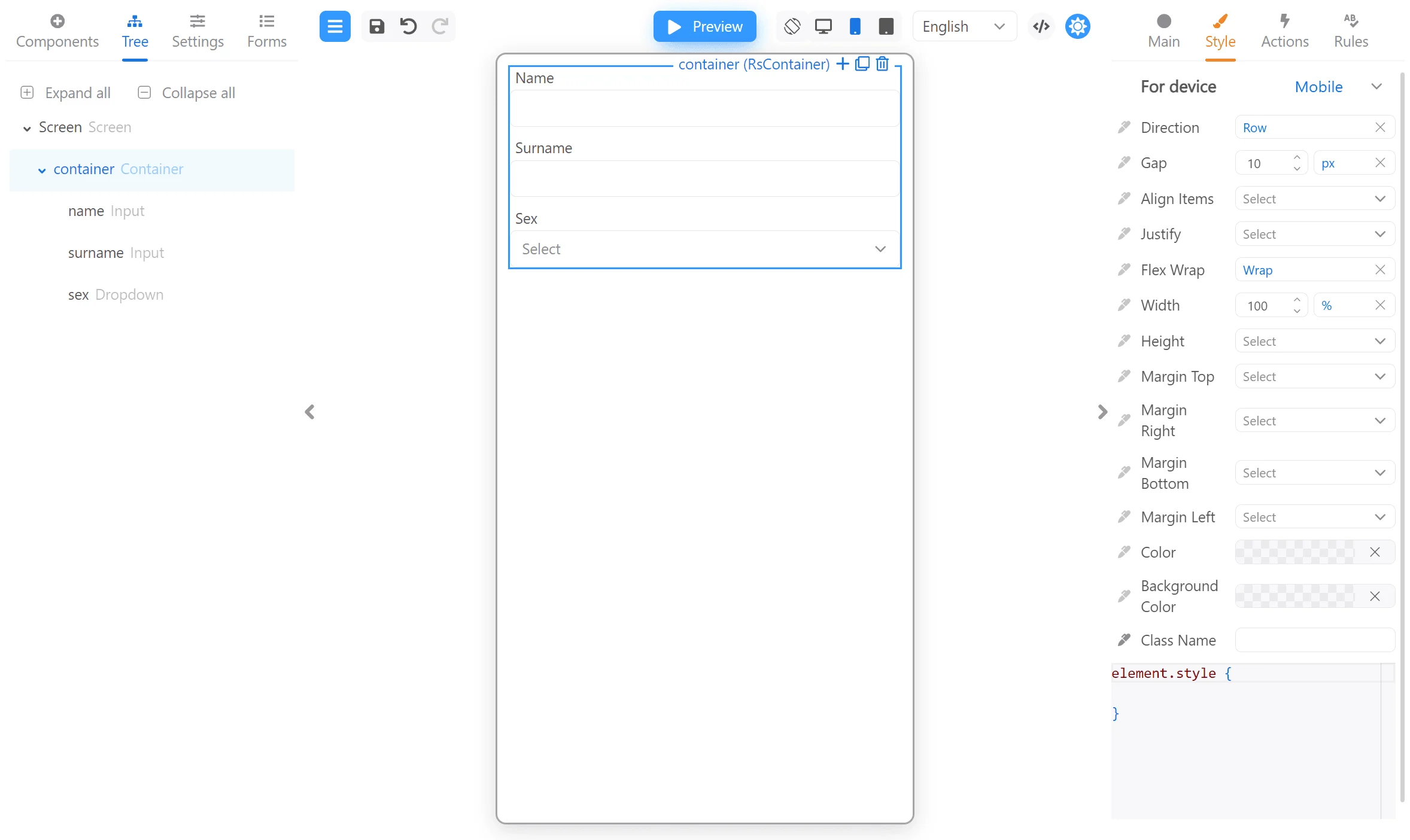
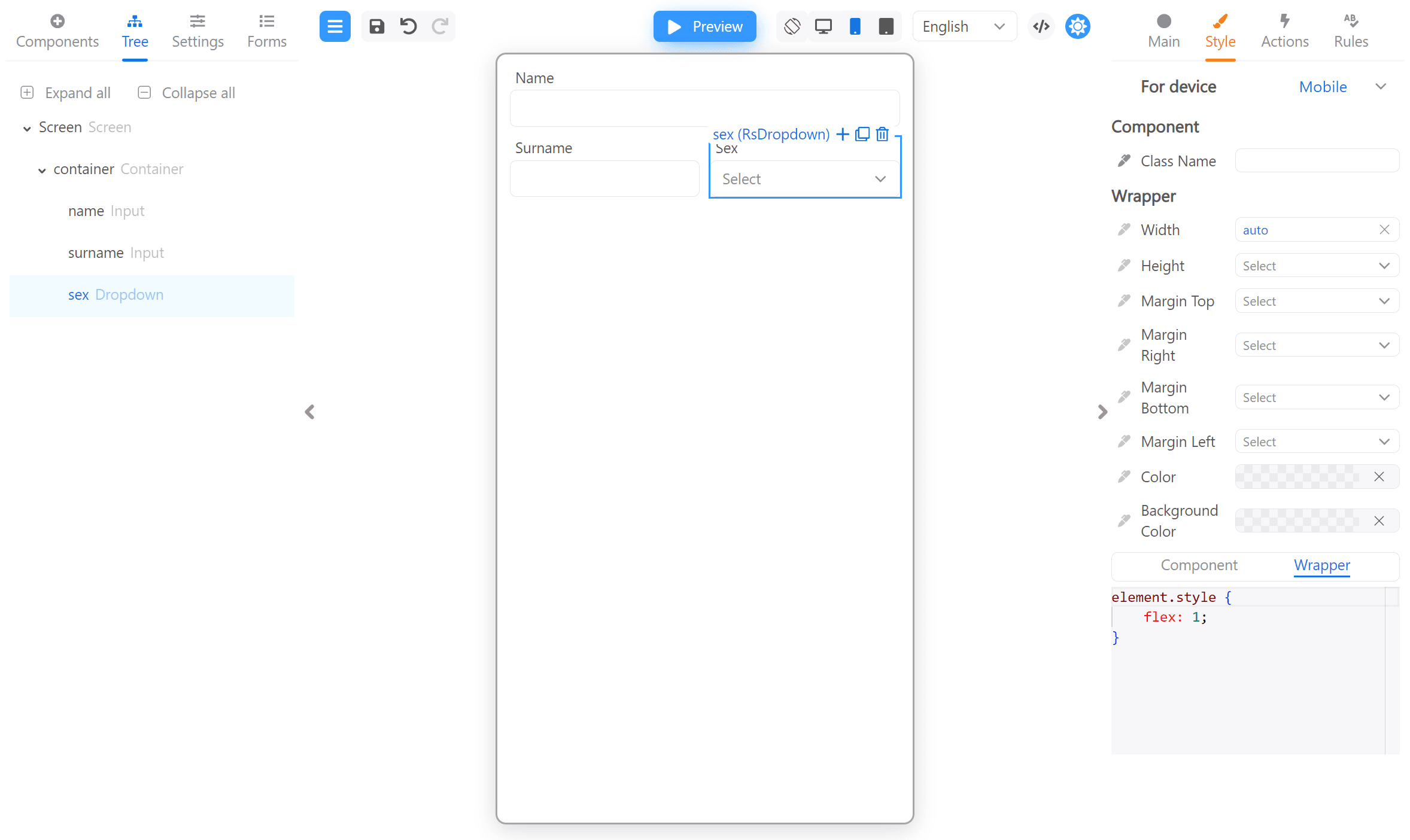
Adaptive layout 02 This is how it looks in Preview mode: Adaptive layout 03 We have also set the Direction: row and Flex wrap: wrap for the container in Mobile mode: Adaptive layout 04 And set Width: auto and flex: 1 for Surname and Sex inputs Wrapper: Adaptive layout 05 Now we can look at the result by switching between devices in display modes: Adaptive layout 06
Last modified on April 16, 2026