

Build Your First React Form with FormEngine
This guide takes the next step after the quickstart. Instead of showing only the minimum setup, it walks through a slightly more complete form so you can see how FormEngine handles structure, validation, rendering, and submission-ready data in one workflow. This is the first complete authoring-to-runtime flow: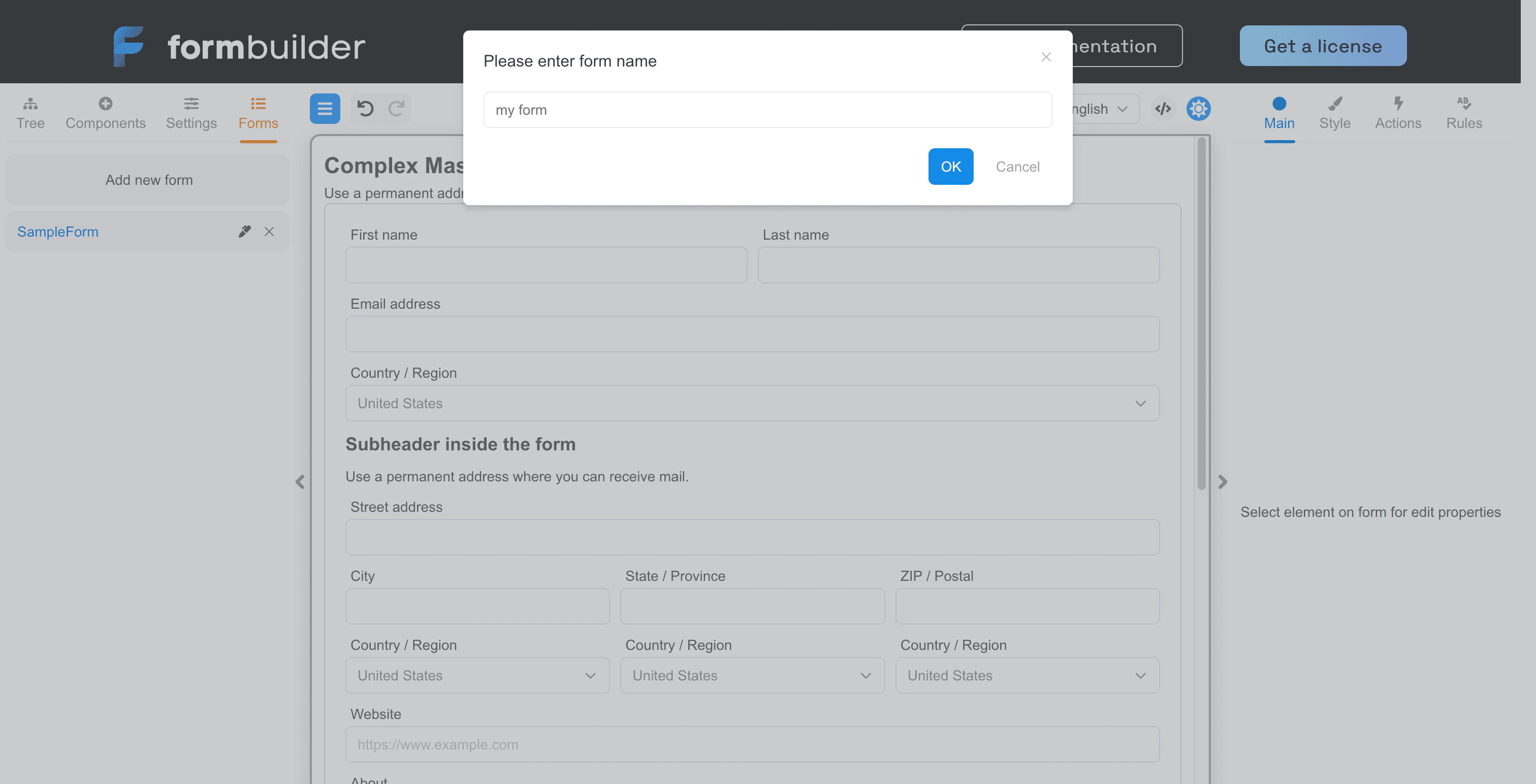
What you are building
You will build a simple contact form with:- a required name field
- a required email field with email validation
- an optional message field
- a submit button
Why this approach is useful
In a traditional React form, you often define fields, validation, and behavior inside components and local state. FormEngine changes that shape. The form becomes a JSON definition that the runtime renders and manages for you. That matters because once a form grows, JSON is often easier to:- reuse across flows
- review in code
- extend with validation and conditional behavior
- connect to a visual builder later
Step 1: Define the form schema
Create a file namedcontactForm.json:
contactForm.json
Step 2: Render it with FormViewer
UseFormViewer to render the schema:
App.tsx
Step 3: Understand the important parts
Here is what matters in the schema:formdefines the component treetypeselects which component to renderpropsconfigure labels, placeholders, and UI behaviorschema.validationsdefines validation ruleseventsconnect user interaction to actionsactionscontain reusable runtime logic
Step 4: Observe form data changes
You will usually want to inspect the current form state while building:App.tsx
What to improve next
Once this first form works, most teams move in one of these directions:- stronger validation
- conditional logic for dynamic fields
- multi-step forms for longer workflows
- custom components for design-system alignment
FAQ
How is this page different from the quickstart?
How is this page different from the quickstart?
The quickstart is the fastest path to a working form. This page goes one step further and explains the moving parts of a more complete first example.
Do I need to memorize the full JSON structure?
Do I need to memorize the full JSON structure?
No. Start by recognizing the main sections like
form, props, schema, events, and actions. You can build from there.Should I define actions in the schema from the beginning?
Should I define actions in the schema from the beginning?
Only when you need them. Simple forms can start with rendering and validation, then add actions when submission or custom behavior becomes important.
What should I read next if I want a more real workflow?
What should I read next if I want a more real workflow?
The multi-step form tutorial is usually the best next page if you want to see a more practical application.
Next steps
Understand validation
Learn how to add richer rules and error handling.
Add conditional logic
Make the form react to user input with dynamic behavior.
Build a multi-step form
Move from a single-screen form to a fuller workflow.
Try the Online Builder
Create a similar form visually and export the JSON.