

- define: is the primary method for defining a component.
- string: annotation builder for properties of type
string. - boolean: annotation builder for properties of type
boolean. - number: annotation builder for properties of type
number. - size: annotation builder for properties of type ‘CSS unit’.
- date: annotation builder for properties of type
Date. - time: annotation builder for properties of type
Time. - array: annotation builder for properties of type
array. - color: annotation builder for properties of type
color. - className: annotation builder for properties containing the CSS class name.
- event: annotation builder for properties of type
event. - node: annotation builder for properties of type
ReactNode. - oneOf: annotation builder for properties of type
enum, the property value can only be one of enum. - someOf: annotation builder for properties of type
enum, the property value can contain multiple enum values. - readOnly: annotation builder for
booleanproperties that make a component read-only. - fn: annotation builder for
functionproperties. - There are other APIs for describing component properties, you can find them in the documentation, these APIs deal with describing synthetic properties of a component (e.g. a set of arbitrary HTML attributes).
Prerequisites
Before starting, ensure you have:- A FormEngine Core project set up
- Basic knowledge of React and TypeScript
- Understanding of how forms work in FormEngine
Step 1: Setting Up Your Environment
1.1 Create a Component Directory
Create a folder namedcomponents/custom inside the src folder. The directory structure in this example will be as follows:
1.2 Install Required Dependencies
Make sure you have FormEngine Core installed:Step 2: Creating Your First Component
Let’s create a simple alert component that displays a message.2.1 Create the React Component
Create a filesrc/components/custom/MyAlert.tsx:
MyAlert.tsx
2.2 Wrap with FormEngine’s define()
Now wrap your component to make it available in FormEngine. Create a filesrc/components/custom/myAlertComponent.ts:
myAlertComponent.ts
Step 3: Adding to Your View
3.1 Create or Update Your View
Insrc/views/customView.ts:
Step 4: Using in a Form
4.1 Create a Form JSON
Createsrc/forms/exampleForm.json:
4.2 Render the Form
In your React app:Step 5: Adding Some Style
Createsrc/components/custom/MyAlert.css:
MyAlert.tsx to import the CSS:
After making all the changes, you will see a page that looks something like this:
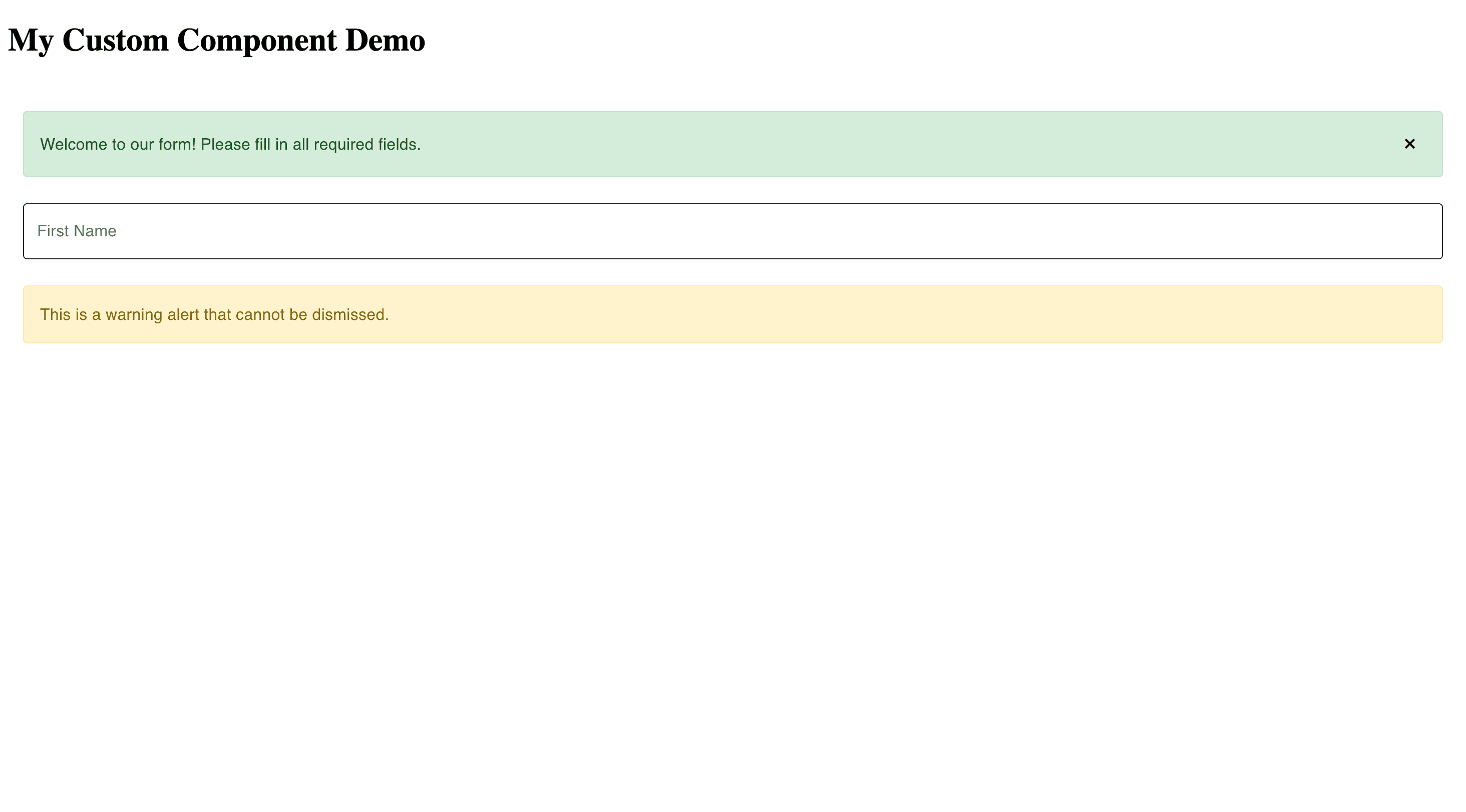
Step 6: Testing Your Component
6.1 Create a Test
Createsrc/components/custom/MyAlert.test.tsx:
6.2 Test with FormEngine
Create an integration test insrc/components/custom/FeMyAlert.test.tsx:
Live example
live
Summary
Congratulations! You’ve created your first custom component. Let’s recap what we learned:- Create a React Component - Write a standard React component with props
- Wrap with define() - Use FormEngine’s
define()function to register it - Add Properties - Define component properties using type builders (string, boolean, oneOf, etc.)
- Add to View - Include your component in a view configuration
- Use in JSON - Reference it in form JSON using the type name
- Style it - Add CSS for visual appeal
- Test it - Write unit and integration tests
Next Steps
Now that you understand the basics, you can explore more advanced topics:- Simple Components - Learn about different property types and static components
- Valued Components - Add data binding to make interactive form fields
- Components with Events - Handle user interactions and trigger actions
Common Pitfalls
❌ Forgetting to Add to View
❌ Mismatched Type Names
Tips for Success
- ✅ Start Simple - Begin with display-only components before adding data binding
- ✅ Test Incrementally - Test each feature as you add it
- ✅ Use Descriptive Names - Clear component and property names help everyone
- ✅ Document Your Components - Add JSDoc comments for properties
- ✅ Follow Patterns - Look at built-in components for best practices